Testing Demo Scenes
To help you get started with your first scene, the showcase directory includes two demos,
one for CAMERA_MODE and another for CURSOR_MODE,
illustrating how the scenes were structured.
For both demos, you need to select the Node3D Interactor in the scene tree and, in the Inspector,
configure the Input Actions dictionary with the corresponding actions from the Input Map.
The Interactor node is located at:
CharacterBody3D → CameraAnchorFPS → Camera3D → Interactorin the first-person demo.CameraCharacter → Interactorin the top-down demo.
First Person Demo
Before running the scene, make sure the Input Map is properly configured with the Input Actions
required for player movement: move_up, move_down, move_left, and move_right.
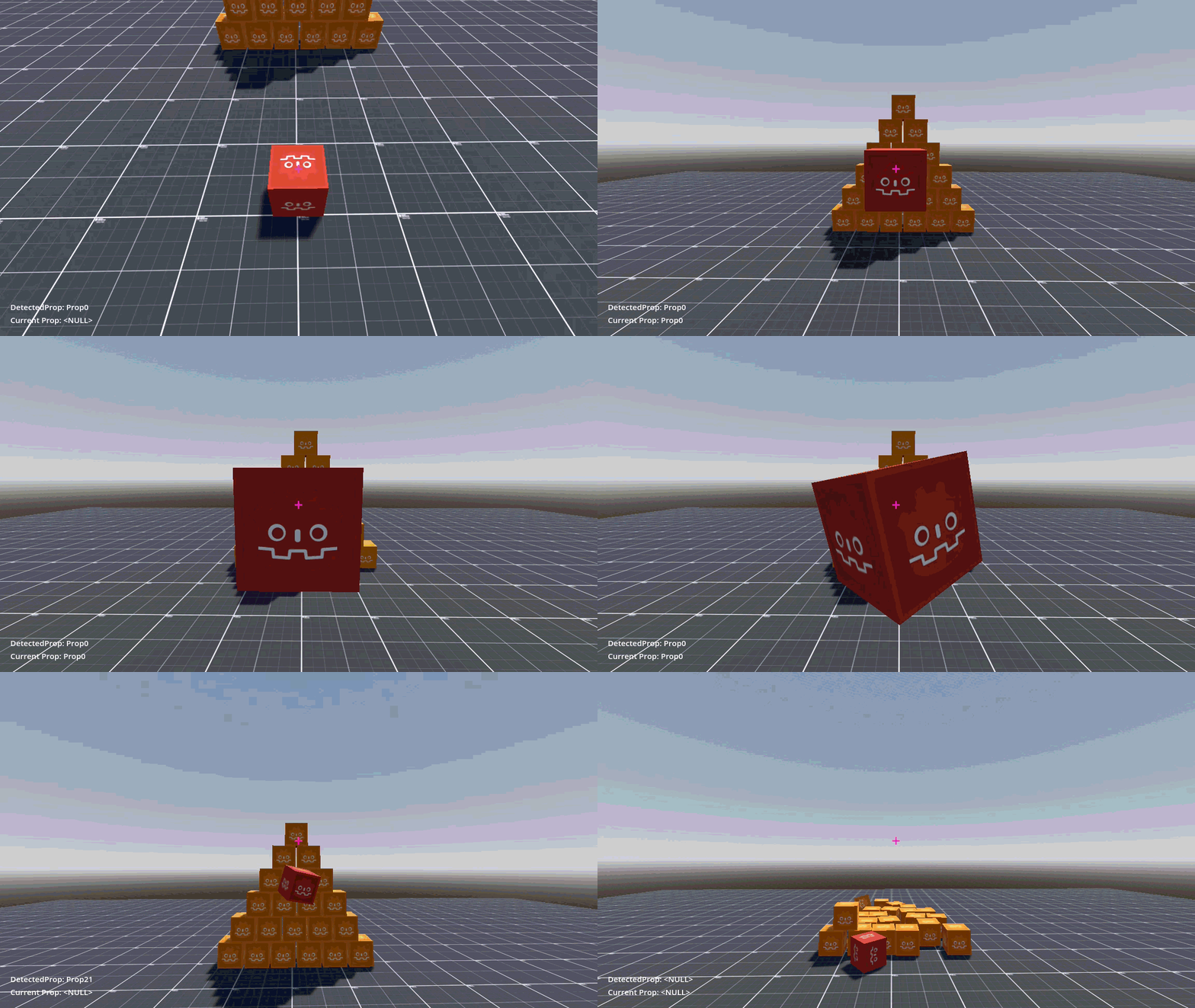
This scene demonstrates the CAMERA_MODE feature, showcasing how it enables physical interactions
with Props in first-person games - such as Amnesia, Portal, or Half-Life.
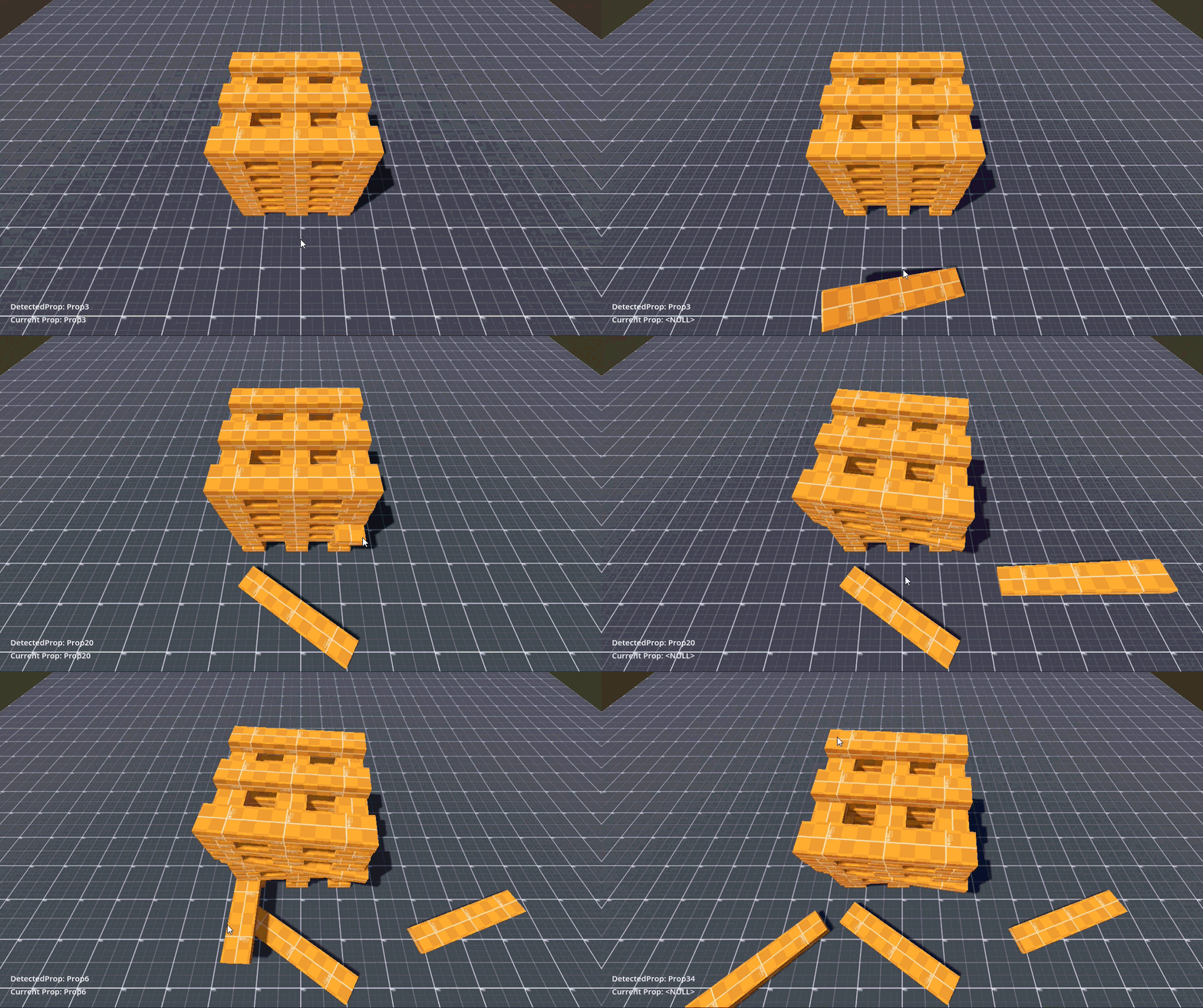
Top Down Demo
This scene demonstrates the CURSOR_MODE feature, showcasing how it enables physical interactions
with Props in top-down, RTS, and other games - such as Table Top Simulator.